Slate Presentation
Building blocks for custom tabs in Slate
Custom tabs in Slate limits the navigation that users need to know to find appropriate forms, interactions, entities, websites, interactions, and entity widgets that are needed to support students. It also allows the grouping of either merge fields, custom text related to interactions/fields or editable fields needed to communicate information about students or complete processes.
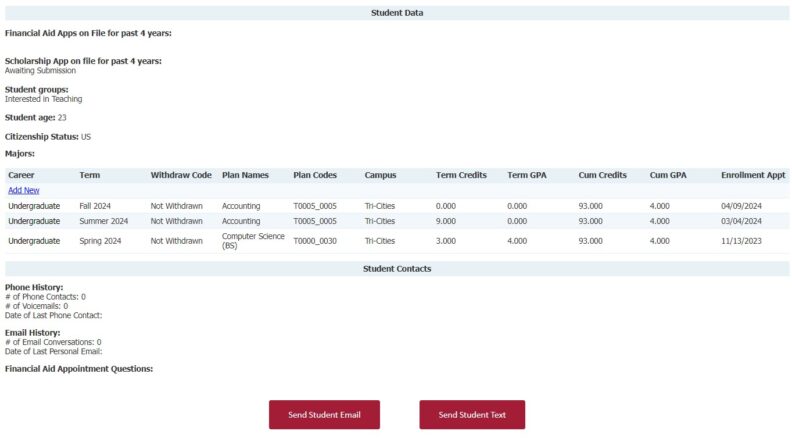
Purpose:
Display data that you want end users to be aware of but unable to edit. This is helpful for data stored in fields that come from import files or to display summary of data from interactions or forms that have been submitted on Students
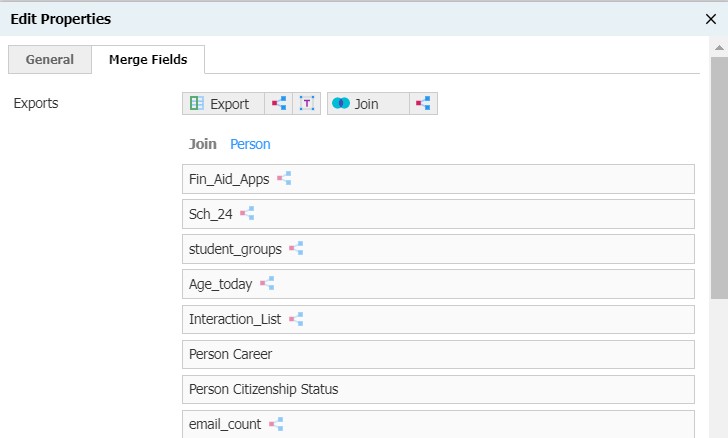
Instructions on how to create merge fields:
1. Merge fields will be used in instruction options on Forms
2. Merge fields are using the same skills that are used to create configurable joins
3. Merge fields are found on the “Edit Properties” section of the form on the second tab called “Merge Fields”
Purpose:
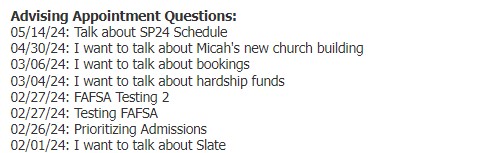
Create a list of all form submissions with submission date for items that may be submitted more than once. Example below shows summary of questions submitted for advising appointments.
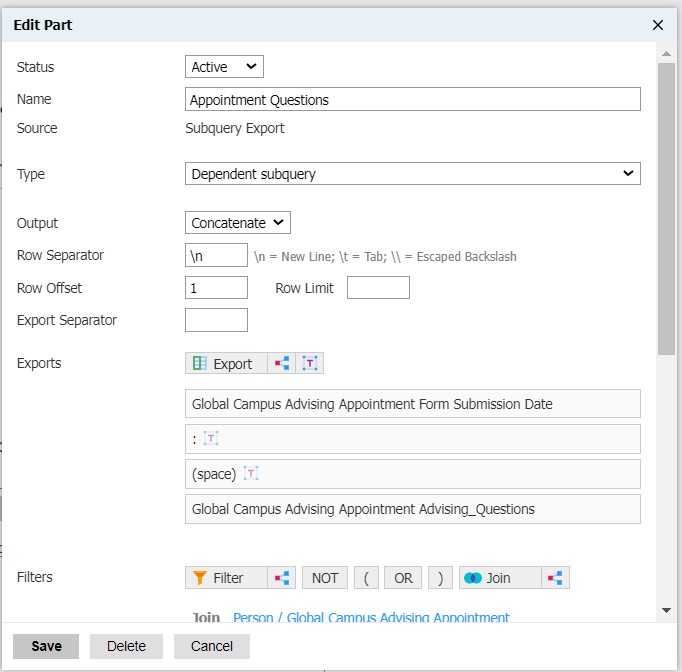
Instructions to create merge field
1. While creating the merge field, make sure that your output is concatenate so your merge field will display more than one row of data.
2. Row separator should be \n to make a new row for each line of data.
3. Use literals to add text and spaces between interested merge fields.
4. In your filter make sure that cancelled forms are removed.
5. With this set up the merge field on the form is very simple.
How Merge field will be shown in instruction block

Purpose:
Allow users to see the most recent form submission in a table format. You can also add links to submit a form and edit a form submission for users to modify internal fields
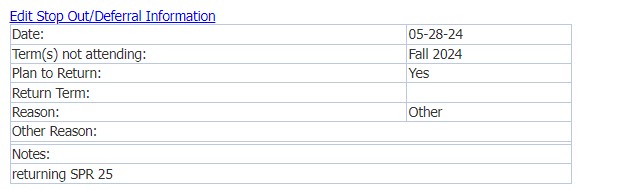
Instructions for creating table & merge fields
1. In instruction block set up table with cell for merge field label and corresponding cell for merge field
2. While creating merge fields you will keep the output as rank.
3. Make sure to add a sort by submission date with a descending order so only the most recent form submission will display.
Consider adding conditional logic to instruction block that holds table so that the instruction block only displays if a form submission exists.
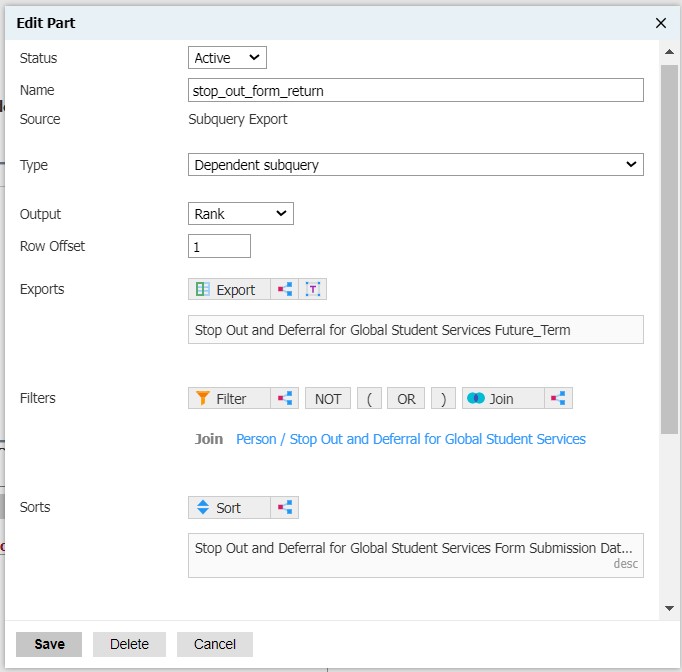
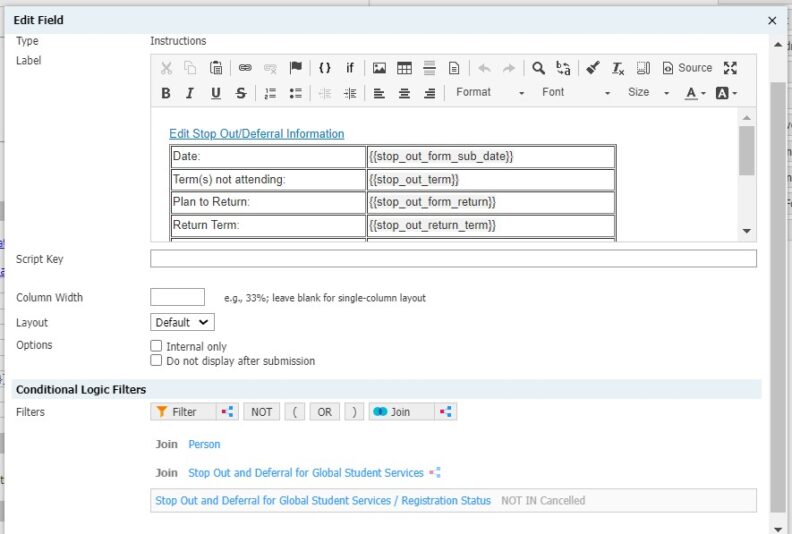
Instructions for creating initial form submission & edit link
Link to form for initial submission
1. Please see the instruction under “Big Red Button” for how to create a button to link to a form connected to the student.
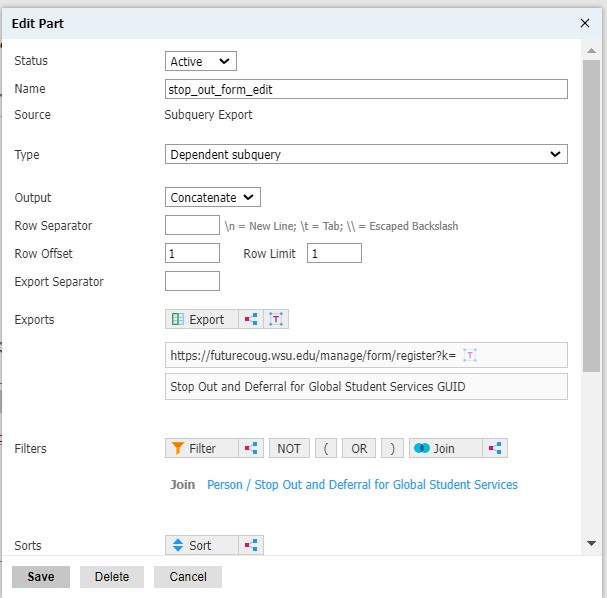
Edit Link
2. Create a merge field with output set as concatenate and joined to the form in question.
3. Use a literal with the following text https://futurecoug.wsu.edu/manage/form/register?k=
4. Add an export for the form GUID
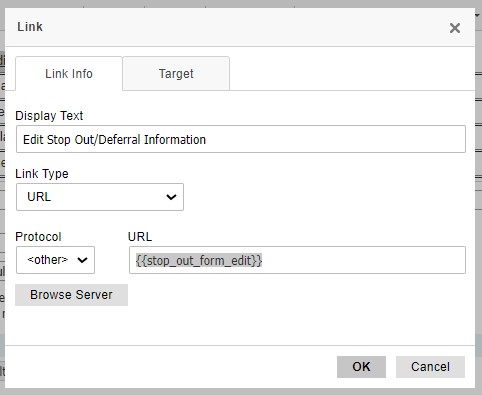
In your instruction block you will set up preferred text as hyperlink that connects to the merge field.
Purpose:
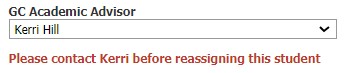
Allow interactions on a student time line to show up as custom text on tab so that users can be alerted to important information needed to support students. In the example below students are assigned an interaction code that a student is a former student who we are trying to get to return to WSU. These students do not follow standard assignment rules for advisor assignments. The same process can be used with data stored in a field (i.e. data from admission application) to let user know follow up needed in advising.
Instructions on how to create merge field:
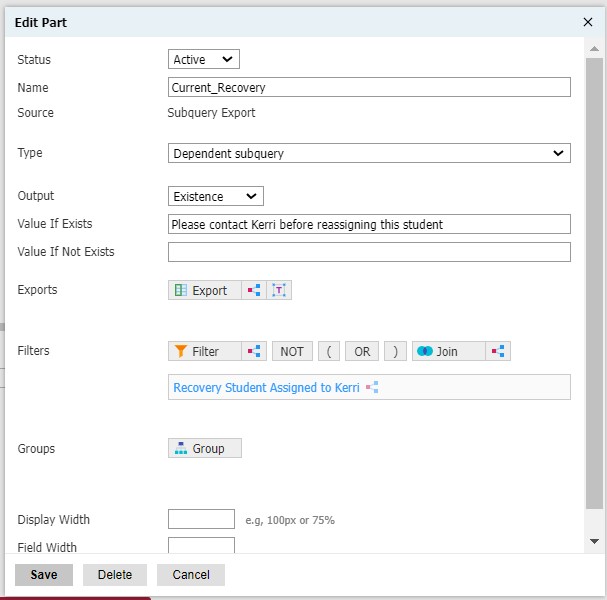
1. Create a merge field using existence as the output
2. Add a filter if the interaction exists. You can add date ranges if you only want the text to show for a short period of time. You can also add a filter on the subject line so that if a user changes the subject line the text disappears.
3. Add the text you want to display if the filter criteria are matched in the Value if Exists field
4. Consider adding a color to the instruction block when you insert the merge field.
Purpose:
Entity Widgets allow data from entities to be displayed and edited within one area.
Instructions:
Entity widgets are a more complex in nature and are best described in the Slate Knowledge base on creating and displaying entities.
Purpose:
Create easy to use processes for end users to access Interactions, Email, SMS, websites or forms without having to navigate to other tabs. Buttons created will automatically attach form, interaction, email or SMS to data on the person record.

Instructions to create buttons:
1. Choose Instructions as an option on the form
2. Choose Source code
3. The starting code for the source code is below. Note: This will format the instruction as a table. <table align=”center” border=”0″ cellpadding=”0″ cellspacing=”0″ role=”presentation” style=”border-collapse:separate;”> <tbody> <tr>
4. Paste styling code to format the button. <td align=”center” bgcolor=”#A31D36″ style=”border:none;border-radius:3px;color:#ffffff;cursor:auto;padding:15px 40px;” valign=”middle”> <p style=”text-decoration:none;line-height:100%;background:#a31d36;color:#ffffff;font-family:Calibri, Open Sans, Arial, sans-serif;font-size:14px;font-weight:500;text-transform:none;margin:0px;”>
5. Enter code for item you want to link to i.e Interaction, Email, SMS, website, form. Codes are listed below. Text in bold is code that needs to be customized for your purposes
6. Paste code for blank cell in table to separate multiple buttons within the table. <td align=”center” bgcolor=”#FFFFFF” style=”border:none;border-radius:3px;color:#ffffff;cursor:auto;padding:15px 40px;” valign=”middle”> <p style=”text-decoration:none;line-height:100%;background:#a31d36;color:#ffffff;font-family:Calibri, Open Sans, Arial, sans-serif;font-size:14px;font-weight:500;text-transform:none;margin:0px;”> </p> </td>
Interaction Source Code:
<a class=”link-wht” href=”/manage/lookup/activity?record={{Person-GUID}}&code=Ineractions Code&summary=Text to display in subject&data=Text to display in Private comments (Line break can be created inserted with :%0D%0A )&dataset=” onclick=”return (FW.Lazy.Popup(this));” style=”color: #ffffff; text-decoration: none;” target=”_blank”>Text on Button</a>
Email Source Code:
<a data-href=”/manage/lookup/message?cmd=compose&person={{Person-GUID}}&recipient={{email}}” href=”#” onclick=”return (FW.Lazy.Popup(this));” style=”color: #ffffff; text-decoration: none;” target=”_blank”>Text on Button</a>
SMS Source Code:
<a data-href=”/manage/lookup/message?cmd=compose&person={{Person-GUID}}&recipient={{mobile}}&method=sms” href=”#” onclick=”return
(FW.Lazy.Popup(this));” style=”color: #ffffff; text-decoration: none;” target=”_blank”>Text on Button</a>
Note: You may want to consider making this button a stand alone button and using conditional logic to only display if a student is OK to text in your database.
Form Source Code:
<a class=”link-wht” href=”Form link using GUID instead of shortened URL&amp;mailing&amp;referrer=http://futurecoug.wsu.edu/manage/lookup/record?id={{Person-GUID}}&amp;context=&amp;person={{Person-GUID}}” style=”color: #ffffff; text-decoration: none;” target=”_blank”>Text on Button</a>
Website Source Code:
<a href=”Website URL&layout_id=1″ style=”color: #ffffff; text-decoration: none;” target=”_blank”>Text on Button</a>
Communication and Campaigns
WSU Global Campus uses a Communications portal to display all of our deliver campaigns and snippets that we use to support students. The links on these websites are only accessible by WSU faculty. For non WSU employees please review the Communications Portal build and preview video, or email joythompson@wsu.edu for more information.
Summary:
When a newly admitted student does not complete the orientation or schedule an advising appointment after two weeks, the Global Campus Student Services reach out to these students to help guide them through the first stages of the registration funnel.
Slate Interactions, Forms, and Portals
Interactions
- Global Advising: Not Advised – Phone
- Global Advising: Not Advised – Email
- Global Advising: Not Advised – Opt Out
Forms
Impacted Functional Areas & Corresponding Queries
Student Services
Documentation
Student Services
Primary Contact: Dr. Herbie Fogt
Date of last comprehensive review: 6.2024
Processes Built/Supported in Slate
WSU Global Campus has built several processes in Slate to support the whole lifecycle of the student. Each process has a summary, listing of interactions, forms, functional areas impacted, queries and process documents. The links on these websites are only accessible by WSU employees who have the appropriate roles in Slate. If you are a non-WSU employee and would like to see the processing document, please email joythompson@wsu.edu to request access.
Summary:
Advisor assignment begins after students matriculate into WSU Global Campus. The advising assignment process is one of the first steps in connecting students to advisors by assigning students to advisors on Slate, MyWSU, and file creation.
Slate Interactions, Forms, and Portals
Interactions
- Global Advising: Advisor Assignment
Impacted Functional Areas & Corresponding Queries
Advising
Student Services
- Needs Advisor (Fall/Spring)
- Advisor Mismatch in Slate and MyWSU (Spring)
- Global Advising Counts for Assignments (revised)
Documentation:
Advisor (links coming)
Student Support Documents
Primary Contact: Dr. Herbie Fogt
Date of last comprehensive review: 6.2024
Summary:
The change of campus process allows students to change from a campus they have applied to or are currently attending to a new campus. There is a different process for students who are part of the admission and initial enrollment process as compared to current students who are continuing their enrollment at WSU.
Slate Interactions, Forms, and Portals:
Interactions
- Global Advising: Advisor Assignments
- Global Advising: COC Decision
Impacted Functional Areas & Corresponding Queries
Advising
Registrar
Student Services
Documentation
Registrar (links coming)
Student Services
Primary Contact: Angela Bonner
Date of last comprehensive review: 6.2024
[BA1]I would like to know more about how COC works in FC if I should make documentation for this
Summary:
Students who are admitted/enrolled as degree-seeking to WSU during the current or recent past semesters, may request to change their status to non-degree seeking or to degree-seeking post-bacc. Students may do this if they wish to take non-degree courses after graduation, to complete a second degree, or if they applied as degree-seeking in error.
Slate Interactions, Forms, and Portals
Forms
Impacted Functional Areas & Corresponding Queries
Registrar
Student Services
Documentation
Advising (Links coming)
Registrar (Links Coming
Student Services
Primary Contact: Angela Bonner
Date of last comprehensive review: 6.2024
Summary:
Exploring/Deciding Student Support is the first steps in helping these students to select a WSU major, which is required at the Global Campus.
Slate Interactions, Forms, and Portals
N/a
Impacted Functional Areas & Corresponding Queries
Advising
Student Services
Documentation:
Student Services
Primary Contact: Dr. Herbie Fogt
Date of last comprehensive review: 6.2024
Summary:
Non-degree student support processes play a pivotal roll in supporting every non-degree student enrolling in courses at WSU Global campus. A non-degree seeking student is defined as a student planning to take undergraduate courses for personal enrichment, a certificate, a teaching endorsement, or to transfer to another institution.
Slate Interactions, Forms, and Portals:
Forms:
Impacted Functional Areas & Corresponding Queries
Student Services
Documentation:
Student Services
Primary Contact: Dr. Herbie Fogt
Date of last comprehensive review: 6.2024
Summary
When a newly admitted student, or a recent change of campus is provided with their planning worksheet from their advisor, they will also receive a link to complete the Global Campus Orientation via the Slate portal.
Slate Interactions, Forms, and Portals:
Interactions
- Global Advising: Welcome Packet Sent
- Global Advising: Math Placement Needed
- Global Advising: English Placement Needed
Forms (Forms are used as quizzes to show proof of completion)
- Global Orientation Lesson 1 Task
- Global Orientation Lesson 2 Task
- Global Orientation Lesson 3 Task
- Global Orientation Lesson 4a Task
- Global Orientation Lesson 4b Task
- Global Orientation Lesson 4c Task
- Global Orientation Lesson 4d Task
- Global Orientation Lesson 5 Task
- Global Orientation Lesson 6 Task
- Global Orientation Final Quiz
Portal
- Orientation link for newly matriculated students
- Orientation link for COC students
- Orientation build in Slate
Impacted Functional Areas & Corresponding Queries
Advising
Student Services
- Orientation requested but not sent by Advisor (Fall)
- Advising Follow up – New (Summer/Fall)
- Orientation Hold Needs Removed (CJ)
Documentation
Advising (Links Coming)
Student Services
- Global Campus Orientation access troubleshooting procedure.docx (needs updating)
Primary Contact: Dr. Herbie Fogt
Date of last comprehensive review: 6.2024
Summary
When students need to be admitted to their major, switched to a new major, or have some other change to their myWSU student plan, Global advisors will submit a plan change request in Slate. Student Services staff will review and apply the requested plan changes to student plan stacks in myWSU. In cases where the addition of a plan stack for a certificate or an additional degree is required, a request will be emailed to the Online Registrar for processing.
Slate Interactions, Forms, and Portals:
Interactions
- Global Advising: Plan Chnages
Impacted Functional Areas & Corresponding Queries
Advising
- Advisors track plan changes on the custom tab related to the student record
Student Services
Documentation
- Advising
- Plan Change Process Guidance – Advisors (review suggested)
- Student Services
Primary Contact: Angela Bonner
Date of last comprehensive review: 6.2024
Summary:
Students whose term or cumulative GPA drops below 2.0 for the first time must complete the reinstatement process before enrolling in courses for Fall or Spring. Former students returning to WSU will also need to complete reinstatement if their term or cumulative GPA was below 2.0 during their last full semester at WSU.
The details of Academic Notice Policy are available in WSU’s Academic Regulations
Overview of Slate features:
- Queries
- Form Responses with payment
Impacted Functional Areas & Corresponding Queries
- Admissions
- I’m not sure what they are using
- Advising
- I’m sure there are other queries that advisors use but I do not know them
- Registrar
- Would Michelle have a query for applying fees to student accounts?
- Student Services
Documentation:
- Advising Documents
- General Reinstatement Process (in progress)
- Registrar
- Student Services
Communications
Communication for Reinstatement process is found under the Global Reinstatement Snippets
Primary Contact: Angela Bonner
Date of last comprehensive review: 6.2024
Summary:
The unofficial transfer credit evaluation process allows prospects to get a preliminary review of their transfer credits before they apply or accept their admission to WSU. This is an unofficial review to help students decide how to proceed with their degree at WSU. The official transfer credit evaluation will be assessed after admission by their advisor.
Primary Contact: Herbie Fogt
Overview of Slate features:
- Interactions
- Forms
- Materials
- Snippets
Impacted Functional Areas & Corresponding Queries/Forms
- Admissions
- Advisors
- Student Services
Documentation:
- Student Support Documents
- Student Services/Advising Processes
- Worksheets (These are updated on a regular basis: Check with academic advisors)
- Major Specific Documentation
- Student Services (links coming)
Communication:
Communication for unofficial transfer credit evaluations is found under Global UTCE Snippet Communications.
There are also form responses attached the Evaluation request form
Primary Contact: Dr. Herbie Fogt
Date of last comprehensive review: 6.2024